Choose a Mood Shot over Invented Playing with a Free AI Music Video Generator—No Signup Required
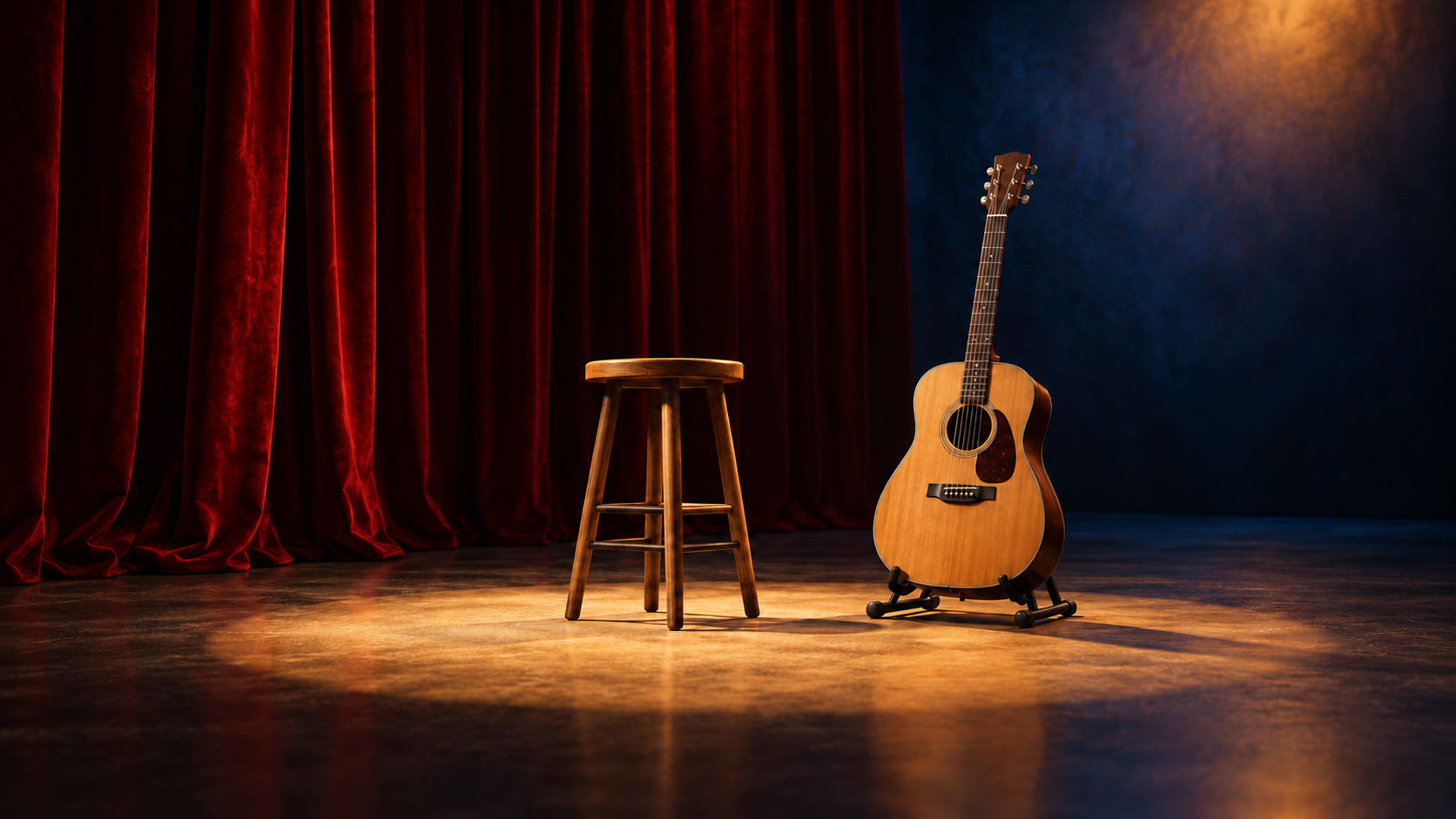
A close-up of fingers on a fretboard asks the viewer to read a specific action. In a lesson, a play-through, or a post explaining your technique, that action may be the reason someone watches. A room, a light, or an instrument resting on a stand makes a different contribution: it can establish a setting for the song without showing how anyone played it.
Decide which contribution you need before writing a prompt. A free AI music video generator with no signup required can be useful for a short imagined cutaway. If the post needs to document your playing, use a recording of the actual performance. A convincing-looking generated gesture cannot establish who played the notes in your recording.
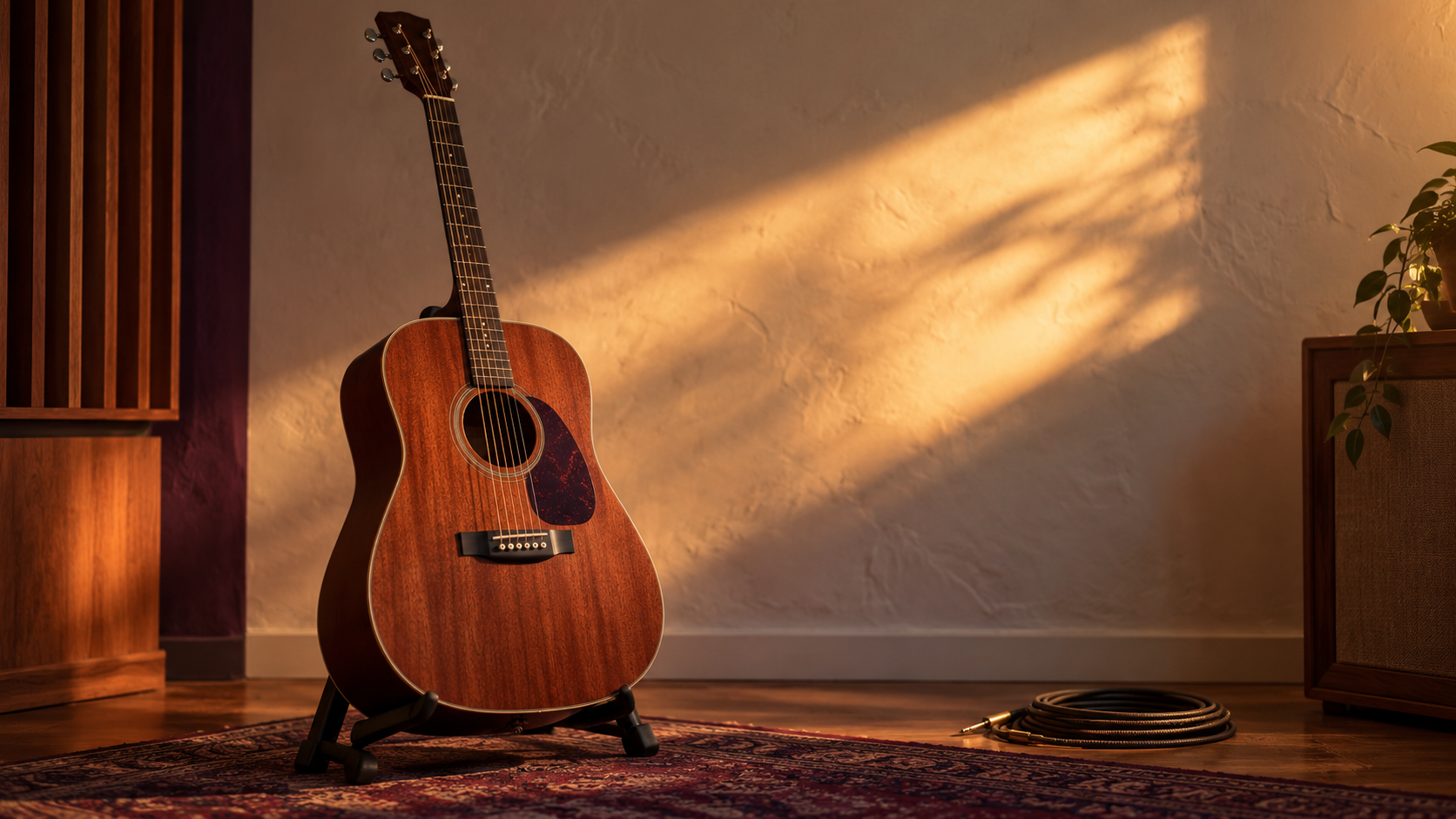
AI-created scene illustration: an unplayed instrument can suggest a musical setting without showing a person performing. This is not a generated-video test.
What does the shot need to show?
Complete a sentence about the post: “The viewer needs to understand ___.” Then choose the material that can answer it.
How a passage is played: record the relevant performance, with the hands or instrument visible where that helps. Check that the audio and picture belong together before presenting it as a play-through.
What the song feels like: plan a cutaway such as an empty rehearsal room, a changing pool of light, or an unplayed instrument. Give that scene a clear visual task.
What happens in an invented story: a fictional performer can be a creative choice. Present the scene as fiction, and avoid describing it as footage of you playing the recorded part.
These choices can coexist in one edit. You might begin with an actual performance and cut briefly to an imagined room. Keep the distinction clear in the surrounding description. For this guide, we will plan the second kind of shot: a guitar remains on its stand while a band of light moves across the wall.
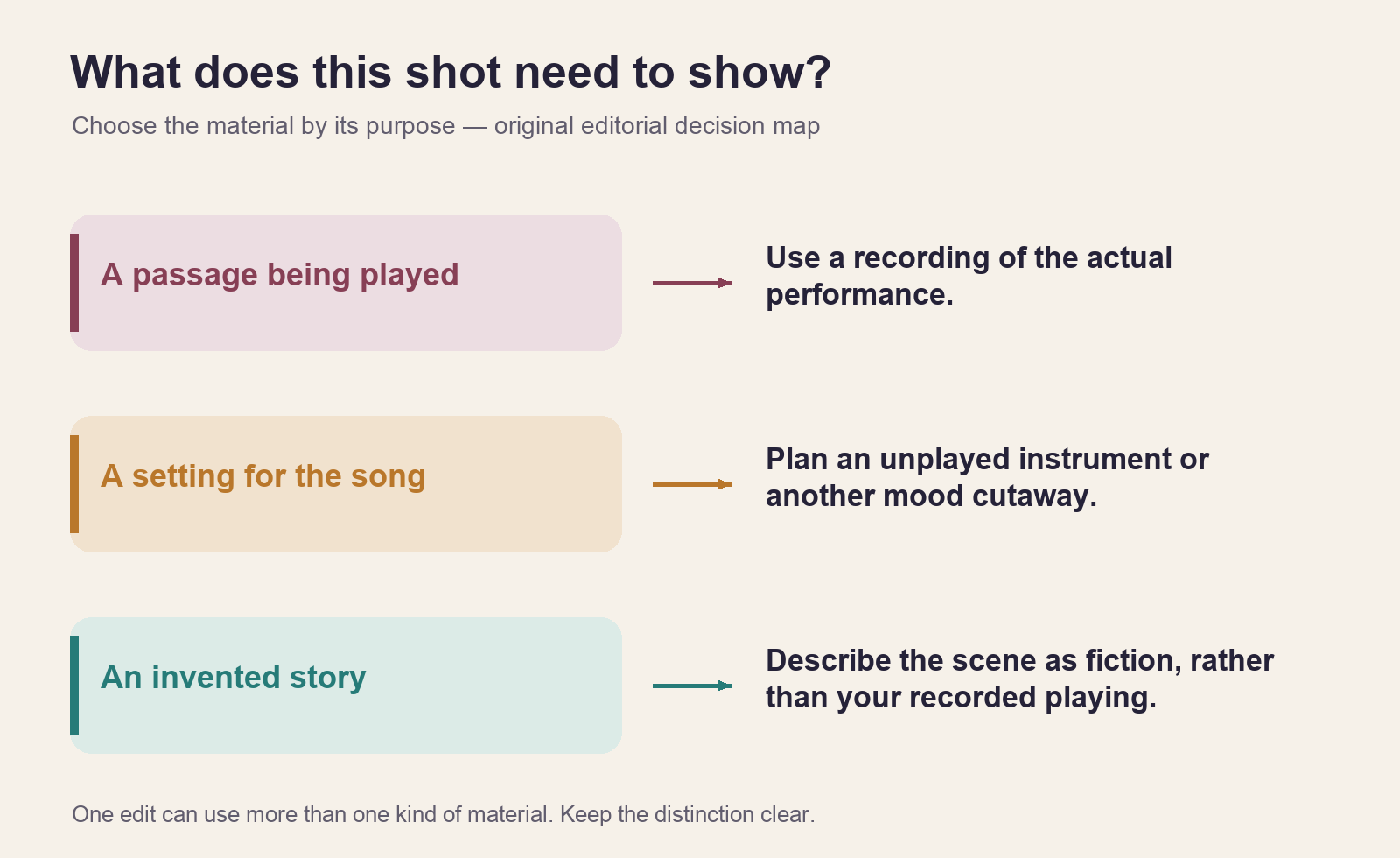
An editorial decision map, not a ranking of image quality. Start with what the shot needs to communicate.
Give the cutaway one visible action
Write down what stays still and what changes. In our example, the guitar, stand, cable, and camera stay still. The light on the wall changes slowly. That gives you something specific to judge without asking the same clip to show convincing fretting, strumming, and camera movement.
Here is a proposed prompt, not a tested result:
A quiet recording room with one unplayed acoustic guitar resting securely on a floor stand. A soft diagonal band of warm light moves slowly across the plain plaster wall behind it. Keep the guitar and camera still. No person, no hands, no playing action, no lettering, and no cuts.
“No hands” describes the intended scene; it is not a guarantee about the output. Likewise, asking the instrument to remain still does not prove its shape will remain unchanged. The point of a focused prompt is to make the next review question clear: does the movement stay in the light while the instrument remains recognizable?
You can choose a different subject. An empty microphone stand with a moving reflection may suit one track better than a guitar. Avoid including a recognizable instrument solely because it looks musical. Choose an object whose role in your song's visual setting you can explain.
Generate a visual ingredient, then inspect it
The MusicMaker free short music video generator describes a registration-free entrance for five-second, 480p clips. Its page offers text prompts or a start-and-end-frame route, three aspect ratios, and preview and download steps, with one request at a time. It identifies the model as MiniMax H3. Those are the site's descriptions, not results from a performance-accuracy test.
For this exercise, use the text route and choose the ratio needed for the planned edit. You do not need to add endpoint images just to try the text example. If you choose the image route instead, prepare both the opening and closing images required by that route.
Watch the downloaded candidate through once. Then pause near its beginning, middle, and end to inspect details you might miss at normal speed:
Does the instrument's body, neck, or bridge change shape?
Does an unwanted hand or playing gesture appear?
Does the camera move even though the plan calls for a fixed view?
Does the light change in a way that supports the quiet scene, or does it draw attention away from the song?
A clean first frame does not settle these questions for the moving file. If the guitar deforms or the scene introduces a performer, choose another candidate, simplify the subject, or use an appropriate still image. Do not treat additional prompt adjectives as a substitute for checking what appeared.
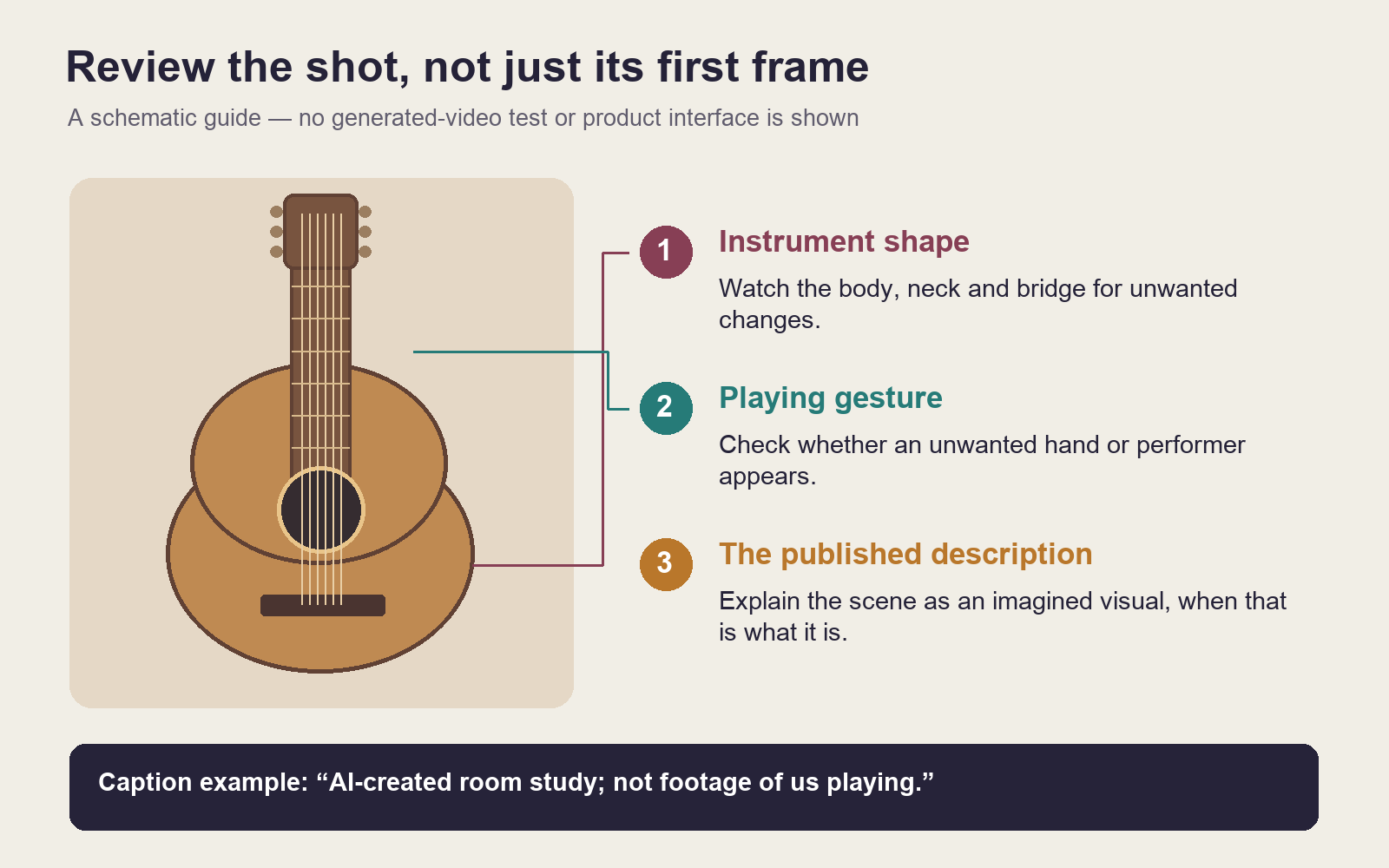
A schematic review aid, not a product screenshot or a result from the proposed prompt. Review the moving file as well as individual frames.
Explain the imagined scene where you publish it
Give viewers enough context to understand the image's role. A possible description is:
An AI-created room study for our song. The light and setting are imagined; this is not footage of us playing.
Adapt that wording to what you actually made. If part of the edit is a real performance, identify the imagined cutaway without casting doubt on the real footage. If the whole piece is a fictional animation, describe that creative choice directly. A vague “made with AI” tag gives less information than a sentence explaining which part was generated.
Keep claims about playing consistent across the title, caption, and video. A caption describing an invented scene will not make a headline such as “Watch my hands play this exact solo” accurate when the hands are generated. Change the claim or change the material.
Keep the song and the visual's sound separate
The visual is an ingredient for an edit. Import it alongside your chosen song excerpt, and listen to any sound contained in the visual file before deciding whether to keep it. If the purpose is to hear your song alone, mute or remove the unwanted clip sound in the editor while retaining the original download.
Place real performance footage where the playing matters. Use the imagined room only where it contributes setting or mood. Watch the finished export, including the text that introduces it, and ask whether a new viewer could reasonably tell which job each shot is doing.
If you do not have the performance recording needed for a lesson, a written explanation or a later recording may serve that post better. For a song announcement, an honest, well-chosen cutaway can be enough. The decision follows what you want the viewer to understand.
Disclosure: This guide is published by MusicMaker and includes our own tool. AI assisted the article and created the scene illustrations; the diagrams are original teaching sketches. The prompts and scenes are planning examples. No video was generated or performance accuracy tested for this guide.